ℹ️
Note: This guide applies to Samsung phones only.
When you install the Natterbox Mobile app for the first time on a Samsung phone, you are prompted to enable the Natterbox calling account in your Android system settings after you sign in. This guide explains how to enable the calling account manually if the in-app prompt closes before the settings screen opens.
Overview
The prompt to enable the Natterbox calling account appears the first time you sign in to the Natterbox Mobile app. It can also appear after you reinstall the app or after your phone installs an Android update.

In some cases, pressing Settings in the prompt closes the Natterbox Mobile app without opening your device's settings menu. If this happens, you can enable the Natterbox calling account manually by following the steps below.
Before You Begin
A Samsung phone with the Natterbox Mobile app installed.
You have successfully signed in to the Natterbox Mobile app.
Enabling the Natterbox Calling Account Manually
Step 1: Open the Phone App Settings
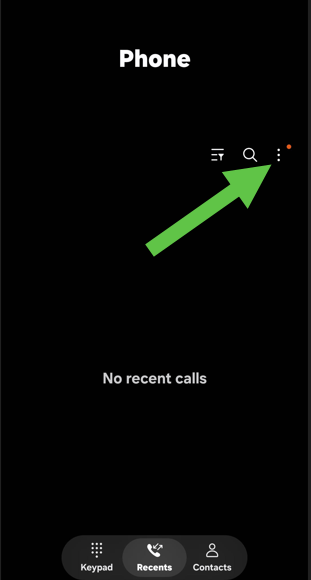
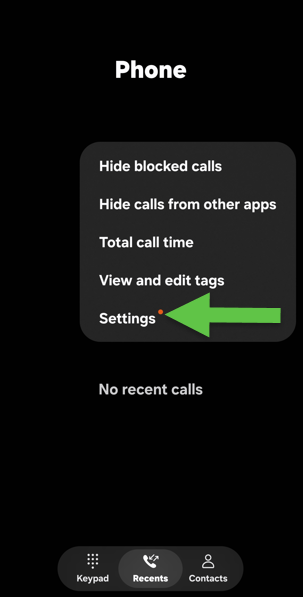
Open the dedicated Phone app, tap the three dots, then tap Settings.
Step 2: Open Other Call Settings
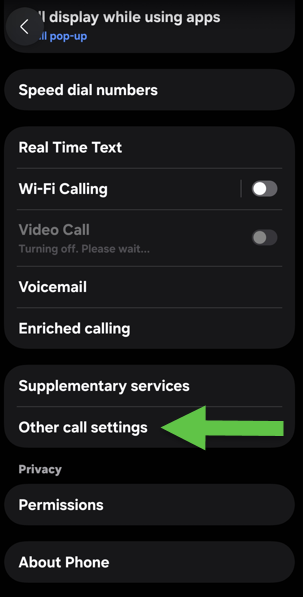
Scroll down and tap Other Call Settings.
Step 3: Open Calling Accounts
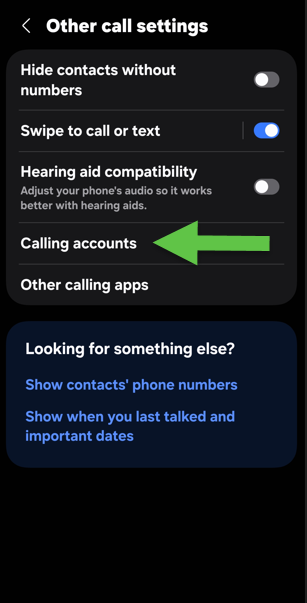
Tap Calling Accounts.
Step 4: Open Active Calling Accounts
Tap Active Calling Accounts.
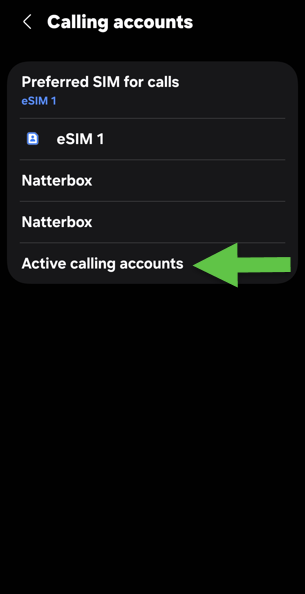
Step 5: Activate the Natterbox Calling Account
Set the Natterbox calling account toggle to active.

Step 6: Reopen the Natterbox Mobile App
Close the settings menu and open the Natterbox Mobile app again.
Verification
With the Natterbox calling account toggle set to active, the calling account is enabled on your device. You can now return to the Natterbox Mobile app and continue using it.
FAQs
Which phones does this guide apply to?
These steps apply to Samsung Android phones only.
When does the prompt to enable the Natterbox calling account appear?
It appears the first time you sign in to the Natterbox Mobile app. It can also appear after you reinstall the app or after your phone installs an Android update.
The Natterbox Mobile app closed when I pressed Settings in the prompt. Is something wrong?
This can happen: pressing Settings in the prompt sometimes closes the app without opening your device's settings menu. Follow the manual steps in this guide to enable the calling account instead.
Where do I find the calling account settings on my Samsung phone?
Open the Phone app, tap the three dots, then go to Settings > Other Call Settings > Calling Accounts > Active Calling Accounts.
What should I do after enabling the Natterbox calling account?
Close the settings menu and open the Natterbox Mobile app again.