If the Natterbox Webphone will not connect, even after the standard CTI troubleshooting steps, a VPN on the user's device can be blocking the connection. This article explains how to recognise a disconnected Webphone, how to confirm whether a VPN is the cause, and what your IT or network team needs to change so that the Webphone can connect while the VPN is in use. It applies to Freedom CTI users of the Webphone and to the IT teams that manage their network.
Problem
One or more users cannot make or receive calls because the Webphone does not connect. Typical symptoms include:
The Webphone shows as not connected, without a clear explanation of why.
The standard CTI troubleshooting steps (reloading the CTI, relaunching the Webphone, clearing the browser cache) do not fix the problem.
The Webphone connects as soon as the user disconnects from the VPN, and stops connecting again when the VPN is turned back on.
Several users who connect through the same VPN are affected at the same time.
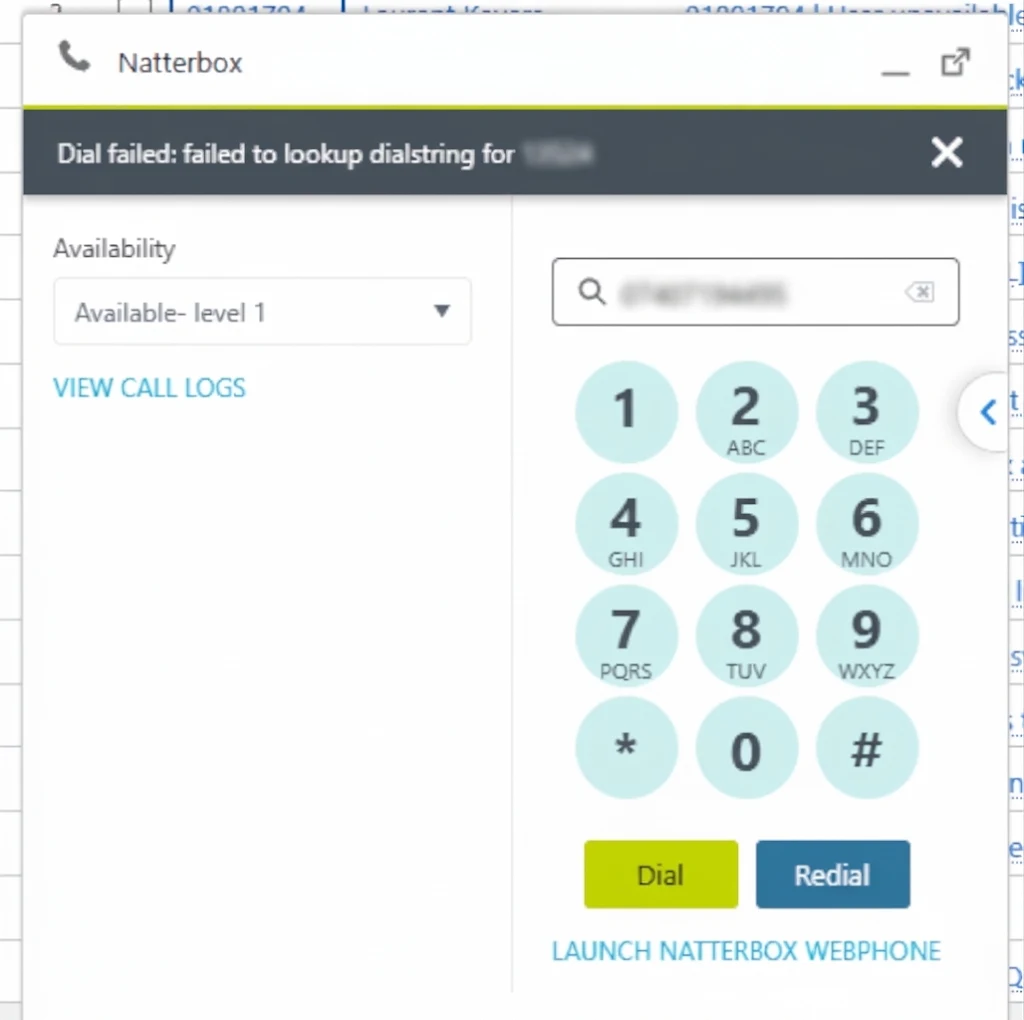
If you try to make a call while the Webphone is not connected, the CTI dialpad may show the error Dial failed: failed to lookup dialstring for [Extension Number], together with the banner Click here to start the Natterbox WebPhone. This error means the assigned device is not registered or connected.
Resolution
In this scenario there is no fault with Natterbox. The VPN, or the firewall behind it, is not allowing the traffic the Webphone needs, so the fix is a change to your organisation's network configuration. Follow these steps:
Work through the quick fixes in the Common CTI Errors and Troubleshooting Guide first: keep only one browser tab open with Salesforce and the CTI, reload the CTI by typing ##0 in the dialpad and pressing the call button, close and relaunch the Webphone, and check that microphone permissions are allowed for the site in your browser.
If the Webphone still does not connect, disconnect from the VPN, then close and relaunch the Webphone from the CTI.
If the Webphone now connects, the VPN is the cause. Ask your IT or network team to apply one of the fixes in the table below, depending on your organisation's security policy.
If your organisation restricts Salesforce logins to specific IP ranges, ask your Salesforce administrator to add the Natterbox IP addresses listed in Technical Prerequisites to the allowed ranges on the Salesforce profile and in Network Access under Setup.
Once the change is in place, reconnect to the VPN, relaunch the Webphone from the CTI, and make a test call.
ℹ️
Note: Disconnecting from the VPN is only a way to confirm the cause. If your organisation requires you to use the VPN, check with your IT team before working without it.
Your IT or network team can choose either of these fixes:
Fix | When To Use It | What Your IT Team Needs To Do |
|---|---|---|
Split tunnelling (recommended) | Your VPN policy allows some traffic to bypass the VPN tunnel. | Exclude Natterbox Webphone and CTI traffic from the VPN tunnel. This restores the connection and also avoids VPN latency and jitter affecting live voice calls. |
Allow Natterbox traffic through the VPN and firewall | All traffic must go through the VPN. | Allow the Natterbox domains and ports listed in Technical Prerequisites on the VPN and firewall. If the VPN or firewall restricts outbound traffic by IP address, also allow the Natterbox IP ranges listed in the same article. |
The Webphone requirements your IT team should check in Technical Prerequisites include:
Requirement | Details |
|---|---|
Webphone outbound ports | TCP 10062 (WebRTC/Websocket) and UDP 5000 to 64000 (RTP/STUN) |
General outbound ports | TCP 80 (HTTP), TCP 443 (HTTPS) and TCP/UDP 53 (DNS) |
Websockets and web filtering | Websockets must be allowed, and the Natterbox domains listed in the Web Filters section should be excluded from SSL scanning. |
UDP traffic | Firewalls should allow UDP to and from the public internet for the browsers that use the Webphone. |
ℹ️
Note: Natterbox does not recommend locking firewalls down to Natterbox IP addresses. Allowing the required domains and ports is the preferred approach. Only allow the IP ranges if your VPN or firewall already enforces IP restrictions.
FAQs
Why does the Webphone connect without the VPN but not with it?
When the VPN is on, the Webphone's traffic passes through the VPN and any firewall behind it. If those do not allow the ports and domains the Webphone needs, the Webphone cannot connect. Without the VPN, the traffic reaches Natterbox directly.
How can I tell if my Webphone is not connected?
If you try to make a call while the Webphone is not connected, the CTI dialpad may show the error "Dial failed: failed to lookup dialstring", which means your device is not registered or connected.
Is this a fault with Natterbox?
No. In this scenario the Webphone works as expected once the network allows its traffic. The fix is a change to your organisation's VPN or firewall configuration, made by your IT or network team.
Why is split tunnelling the recommended fix?
Split tunnelling sends Natterbox Webphone and CTI traffic outside the VPN tunnel. This restores the connection and also stops the VPN adding latency and jitter to live voice calls, which helps call quality.
Do we need to allow the Natterbox IP addresses?
Only if your VPN or firewall restricts outbound traffic by IP address. Natterbox recommends allowing the required domains and ports instead. If you also restrict Salesforce logins by IP range, the Natterbox IP addresses must be added to the allowed ranges in Salesforce as well.
Where can I find the domains, ports and IP ranges to allow?
They are listed in Technical Prerequisites. Share this article with your IT or network team so they can apply the correct settings.