Site permissions govern how your web browser interacts with your computer's audio hardware, notifications, and popup windows. Over time, cached site data or conflicting permission rules can cause the Natterbox Webphone and Salesforce CTI integration to malfunction.
Resetting and reconfiguring your browser site settings resolves the most frequent telephony and CTI issues, including:
One-Way Audio / Silent Calls: Inbound or outbound audio is silent even though the call is connected.
Microphone Access Denied: The Webphone shows a red microphone banner or fails to detect input.
Webphone Popup Blocked: Clicking the CTI phone bar does not open the floating Webphone window.
Notification Failures: Incoming call alerts do not appear on your desktop.
Not being able to make or receive calls
Google Chrome Site Settings
Access Site Settings
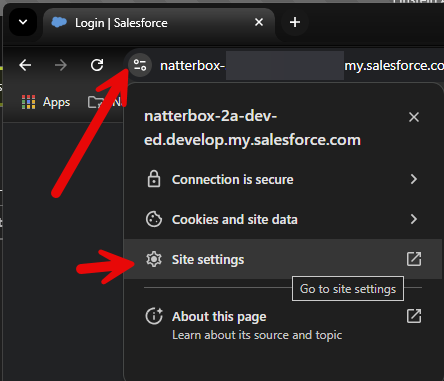
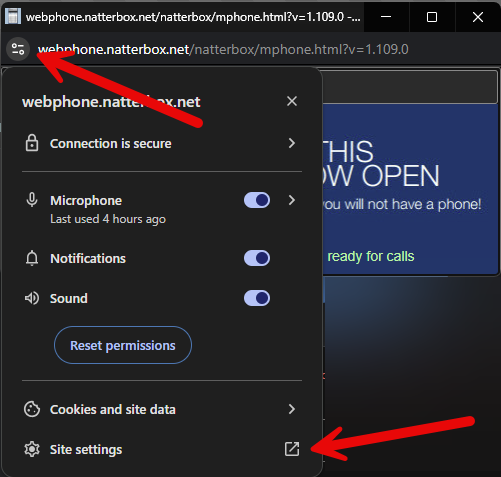
In your Google Chrome browser, locate the circle icon with two lines and two dots next to the URL of the Salesforce AND Webphone page.
Click on the site settings button.
Reset Permissions:
In the site settings page, find the Permissions section.
Click on the Reset permissions button to restore the site's permissions to their default settings and press delete data to clear the cache.

Adjust Microphone and Sound Settings:
In the same site settings page, locate the Microphone and Sound settings. (If applicable also locate Popup’s and Redirects - This allows the webphone to launch)
Click on the dropdown menu for each setting and select Allow.

Go back to the webphone window and close the page completely and Refresh your Salesforce Page. Relaunch the CTI and reopen the webphone and confirm you are seeing the correct microphone displayed within the CTI. You may also need to approve a few further popups such as notifications once refreshed on both pages.
These steps should resolve a lot of issues caused by incorrect site permissions or browser settings. If issues persist please contact a member of our support team for further assistance or review our other troubleshooting guides linked below.
Microsoft Edge Site Settings
Access Site Settings
Begin by opening your Microsoft Edge browser. Locate the lock icon (or site information icon) next to the URL of the Salesforce and Webphone page. Click on the "Permissions for this site" button to proceed.

.png?sv=2026-02-06&spr=https&st=2026-10-23T08%3A53%3A19Z&se=2026-10-23T09%3A05%3A19Z&sr=c&sp=r&sig=G3Q9cGWhmBqtruz65vfdvPzt49PXHUm8BISgU8L5t2k%3D)
Adjust Microphone and sound settings
In the site settings page, locate the Microphone and Sound settings. If applicable, also locate the Pop-ups and redirects section, as this allows the webphone to launch properly. Click on the dropdown menu for each setting and select "Allow" to enable these features.

After making these adjustments, return to the webphone window. Close the page completely and refresh your Salesforce page. Relaunch the Computer Telephony Integration (CTI) and reopen the webphone. Confirm that you see the correct microphone displayed within the CTI interface. You may also need to approve additional pop-ups, such as notifications, once you have refreshed both pages.
Following these steps should restore proper functionality for your webphone and microphone settings in Microsoft Edge.